Bidirectional Data Editing
VetroLog is not just a read-only viewer. It allows you to edit values and delete rows directly from your desktop, writing the updates back to your mobile device in real time.
This makes debugging edge cases, testing form validation, and resetting test user states effortless.
✏️ Editing Table Cells In-Place
- Open any table in the DataGrid.
- Double-click on any cell you wish to modify (e.g. changing a
name,status, orprice). - An inline editor appears. Enter the new value:
- Numbers: Validated automatically as integers or floats.
- Strings: Stored as UTF-8 text.
- Booleans: Can be toggled or edited as
1/0. - NULL: Emptying the field or typing
NULLsets the cell to SQL NULL.
- Press Enter to save (or press Escape to cancel).
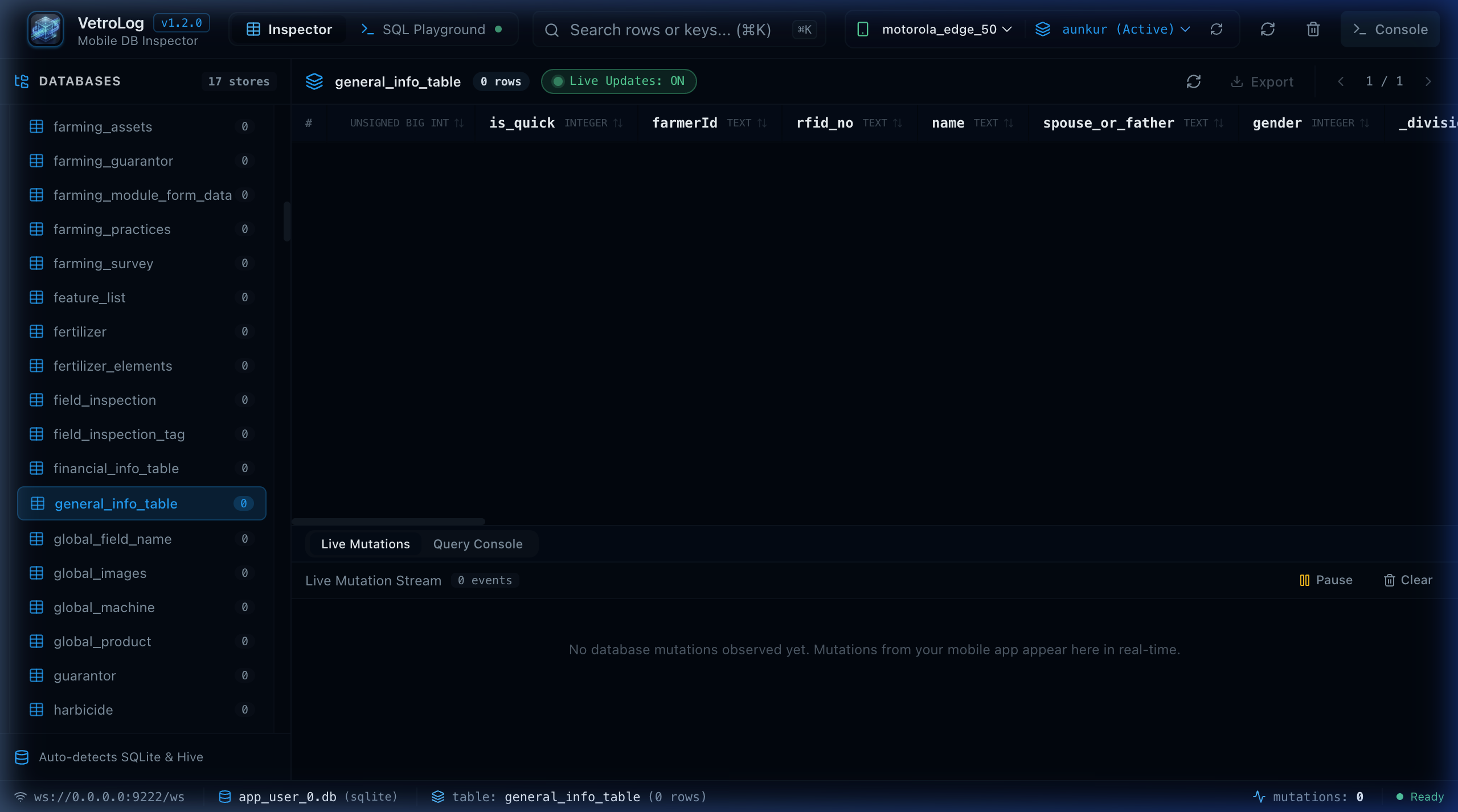
Optimistic UI & Safe Write-Back
- Immediate Feedback: The cell updates optimistically on your screen with a subtle green pulse.
- Under the Hood: VetroLog detects the table’s Primary Key (
PK) and executes a targeted SQL update:UPDATE users SET name = 'Jane Doe' WHERE id = 42; - Mobile Synchronization: The update is written directly into the mobile sandbox database. If your app is listening to reactive streams (e.g. Flutter
StreamBuilder, Android RoomLiveData/Flow), your mobile app UI will update live on the phone screen immediately!
🗑️ Deleting Rows
- Locate the row you want to delete in the DataGrid.
- Click the Trash Can icon (🗑️) at the right side of the row (or select the row and press
Delete/Backspace). - Confirm the deletion prompt.
- VetroLog removes the record locally and issues a safe parameterized delete:
DELETE FROM users WHERE id = 42;
🔒 Safety Guards & Rollbacks
If a table lacks an explicit primary key, you can still execute precise queries using the SQL Playground or test modifications safely using the Safe Dry-Run Simulator.